How to check if someone has access to your Apple ID? What to do in the event of a burglary?

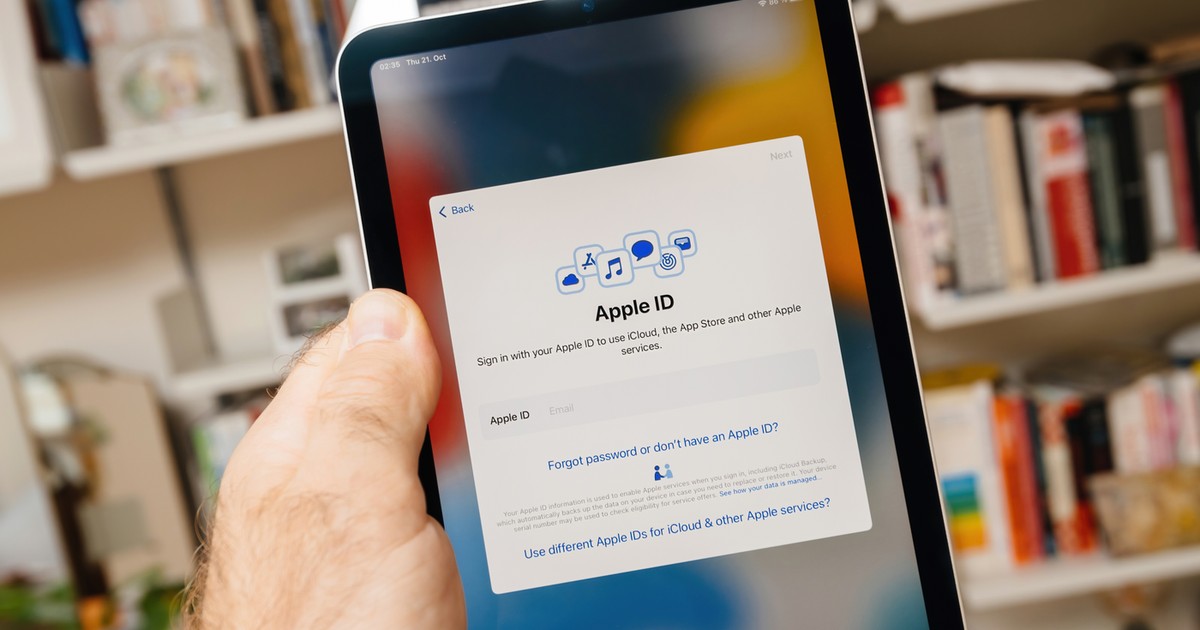
If you notice any of these signs, act immediately.
- Read also: Spy system on your phone? You can be tracked without your knowledge
2. How to check which devices you are signed in to?
On iPhone or iPad:
- Open Settings.
- Tap your name at the top.
- Scroll down and you'll see a list of all the devices signed in to your Apple ID.
- Tap on the suspicious device to see details (model, system version, whether it is trusted).
On Mac:
- Click the Apple menu and select ““System Settings”.
- Click your name.
- Scroll down to the device list.
The best way – via browser:
- Visit the website accounts.apple.com and log in.
- In section Devices you will see the full list.
- You can click on each device and select Remove from account (if you don't recognize the device).
Additionally, check:
- Trusted devices and phone numbers in the section Login and security.
- Forwarding SMS messages – enter the code in the Phone application *#21# and call. It should show if something is being redirected.
iPhone
3. What to do if you find an unknown device or suspect a hack?
Step 1: Change your password immediately
- On the device: Go to “Settings”, [Twoje imię]”Password & Security” and select “Change Password”.
- Or by accounts.apple.com.
- Use a strong, unique password (minimum 16 characters, letters, numbers, symbols). Never use the same password as on other websites.
If someone has already changed their password and you can't log in:
- Go to iforgot.apple.com and start the password reset process.
Step 2: Remove unknown devices
- On accounts.apple.com enter “Devices”, then select unknown device and click “Remove from account”.
Step 3: Check and correct your account details
- On your Apple account page, update:
- Recovery email address
- Phone number
- Personal data
- Delete any unknown email addresses or phone numbers added by the intruder.
Step 4: Enable or check two-factor authentication (2FA)
- It should be enabled by default, but check the section Security.
- With 2FA, even if someone knows your password, they need the code from your trusted device or number.
Step 5: Check iMessage and message forwarding
- Go to: “Settings”, “Messages” and select “Passing the message”. Then disable this feature on unknown devices.
- Check the Messages app for unauthorized conversations.
Step 6: Additional security
- Change passwords for associated email accounts (Gmail, Outlook, etc.).
- Contact your mobile operator – check if there is any SMS forwarding.
- Review recent App Store/Apple Music purchases and report unauthorized purchases.
- Consider turning it on Stolen Device Protection (Stolen Device Protection) in newer iOS versions.
4. Don't have access? Account recovery
If the attacker has completely taken over the account:
- Go on iforgot.apple.com.
- Select the account recovery option.
- Apple may require a waiting period (a few days) – this is a normal safeguard.
- As a last resort, contact Apple support (via the Support app or by phone) and prepare proof of ownership (device serial number, receipt, etc.).
5. How to prevent burglaries in the future?
- Always turn on two-factor authentication.
- Do not click on suspicious links in emails/SMS (phishing).
- Never give your verification code to anyone (even an “Apple employee”).
- Use a password manager and unique passwords.
- Regularly check the device list on account.apple.com.
- Turn on login notifications (Apple sends them automatically).
Apple ID hacking is a serious matter, but reacting quickly will almost always help you regain full control. Highlights: don't panic and act systematically according to the above steps.