How to check the seniority in work and social contributions online. Useful guide to employees

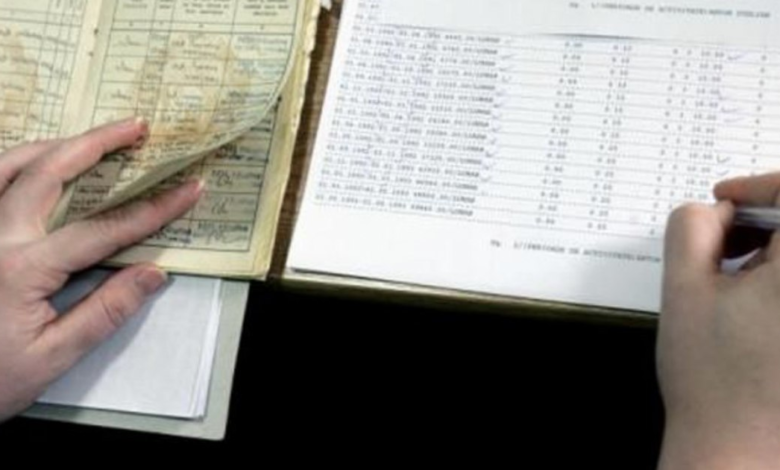
Checking the workbook after the CNP is not only a formality, but a simple way to be sure that everything you have worked is in documents, so that, if there are problems, they can be remedied as it is not too late.
Workbook checking can be done online. Photo archive
It is quite simple to check the workbook after the CNP, without having to look for by the archive of any company or the old forgotten workbook through a dusty drawer.
Any employee in Romania can create a user account on the website of the National Public Pension House (CNPP) to find out what age at work has accumulated for the state pension. Once the account is created, you can quickly find out the accumulated age, presented either as a monthly situation or as an annual situation.
How can you get the information
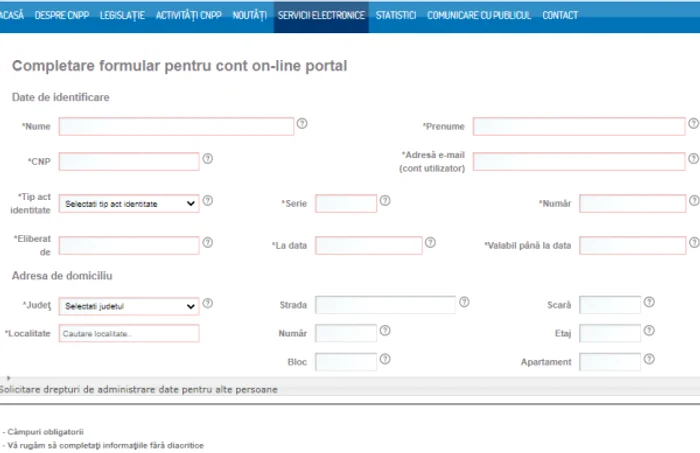
First of all, you have to make an online account on the CNPP website, in order to see your age at work. In this sense, an online form is completed which must then be printed and presented, together with the identity document (original and copy), at any local pensions. Later, you will receive an e-mail by which you will be able to set the account password, after which you will actually access your account from the CNPP website.
1. The first step is the authentication in the user account. Press the “authentication” button in the right-hand corner of the site www.cnpp.ro. A page will open in which you will enter the email and password you set for your account, and then you will press “Authentication”.
2. Once you enter the account, you will have a menu on the left side of the page. In the menu, select “My data in the public pension system”.
3. In that section, you can choose either a document with the monthly contribution periods registered in the CNPP records since April 2001, or a document with the annual contribution periods. You enter the monthly internships or annual internships and then press “generate updated report”.
4. The difference is that in the first file you can see the situation of the seniority month by month (worked days, income, working conditions, score, employers who have contributed for you, total working age), from April 2001 and until now, and in the second you can see only the annual situation (without monthly details). If you want to see the previous situation of April 2001, it must be selected “Workbook information” and pressed on “Generates updated report ”. Why? Because from April 2001 he has given up the old workbooks and went to the electronic work record (the data reported by the employers by declaration 112).
5. After you have requested the generation of an updated report (or several reports), you must wait a few minutes until it is effectively generated in the system and becomes available in your account. When a report is ready, you receive a notification email and the report can be downloaded, in PDF format, from the account on the CNPP website. Specifically, you go back to the page where you asked for the report generation and you will find the downloadable file there.